
Choose “AI text” instead of “Manual text” for any message function (opener, follow-ups, auto-InMails) in the workflow – the AI then automatically writes an individual message for each contact based on their profile data.
Requirement: AI messages require the Premium Plus package. Without Premium Plus, CompLeadly skips a function with AI text unless a fallback message is enabled. Alternatively, switch the function to “Manual text”.
Step 1: Open message function in the workflow
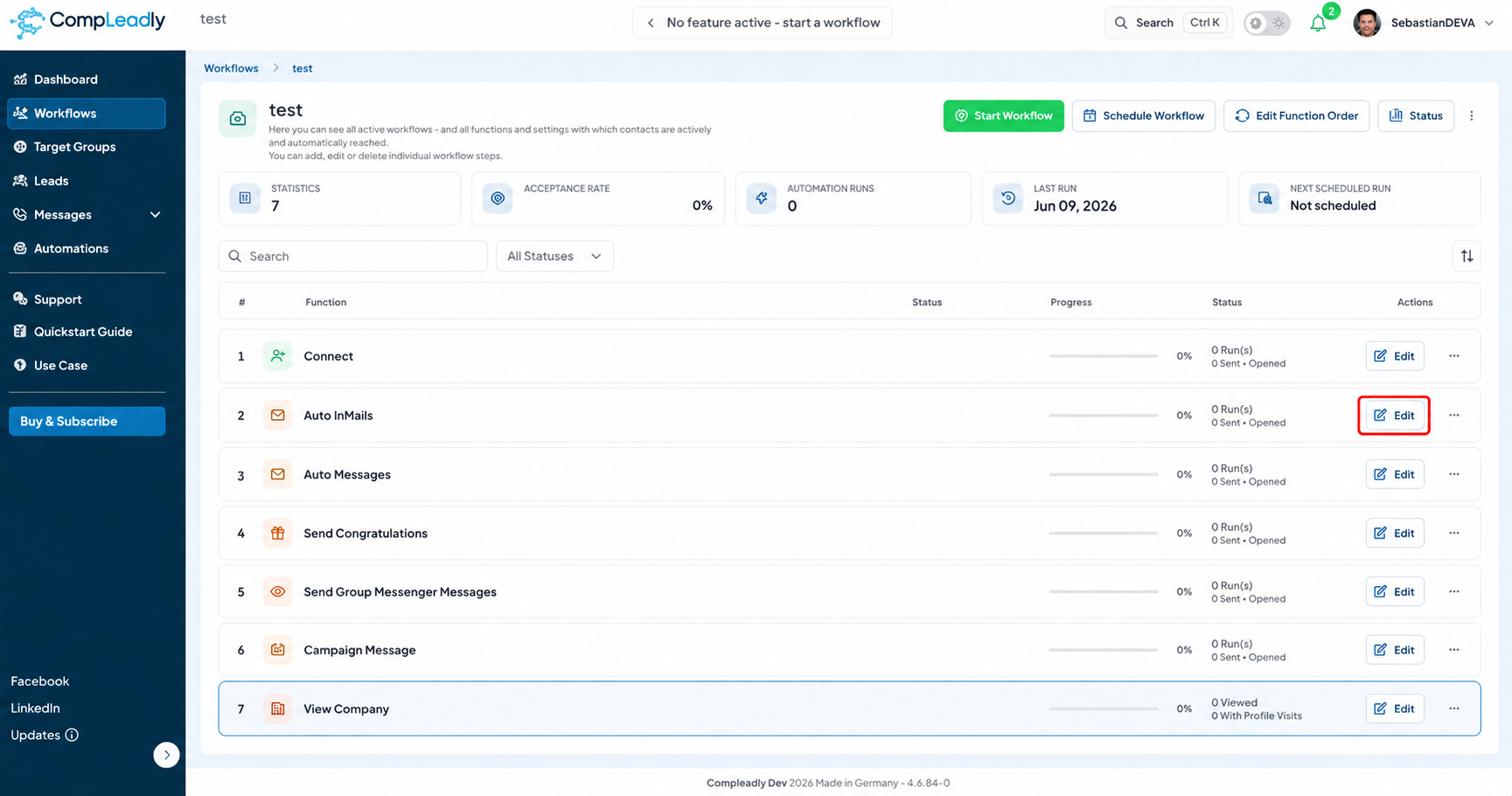
Open your workflow and click “Edit” on the right for the desired message function (e.g. Auto InMails, opener or follow-ups).
Step 2: Choose between “Manual text” and “AI text”
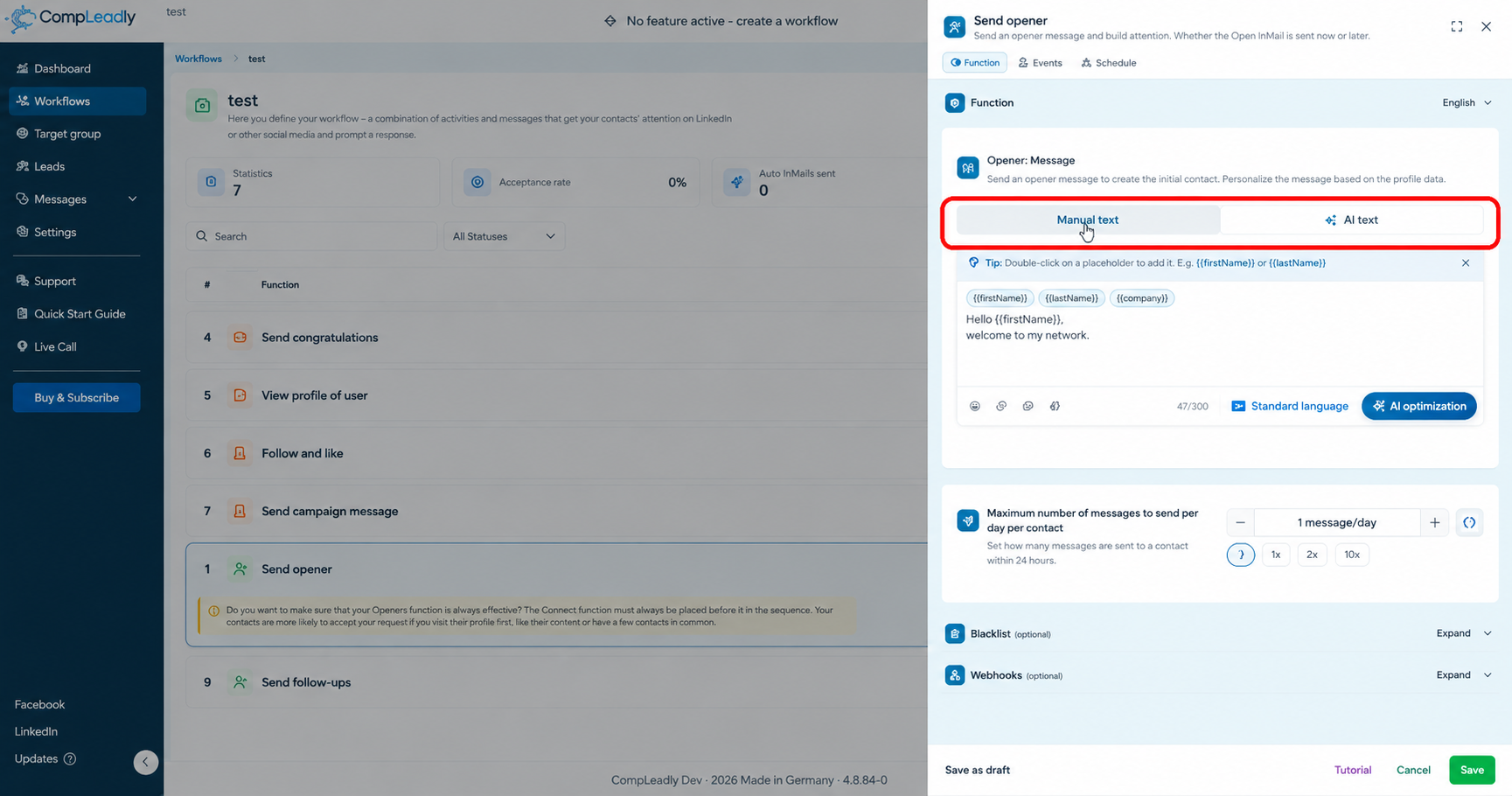
At the top of the function, you define how the message is created: “Manual text” (written yourself, with placeholders) or “AI text” (created by the AI). Choose “AI text”.
Step 3: Define style and prompt
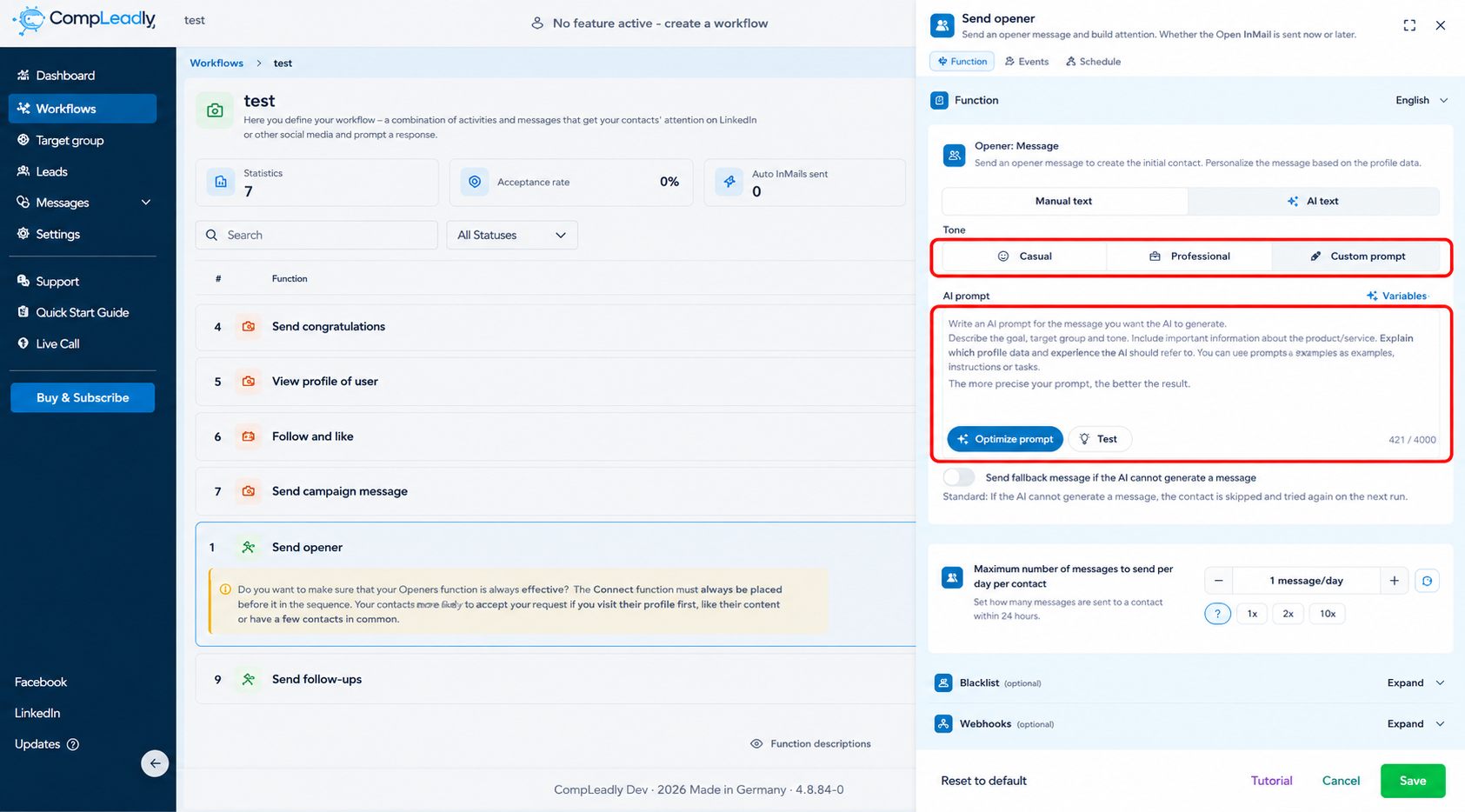
Under “Style”, two templates are available: “Casual” and “Professional”. Alternatively, choose “Custom” and write your own AI prompt. With “Optimize” you improve it, with “Test” you generate a sample message. The AI writes an individual message for each profile from your prompt and the contact’s profile data.
Step 4: Choose sample person for testing
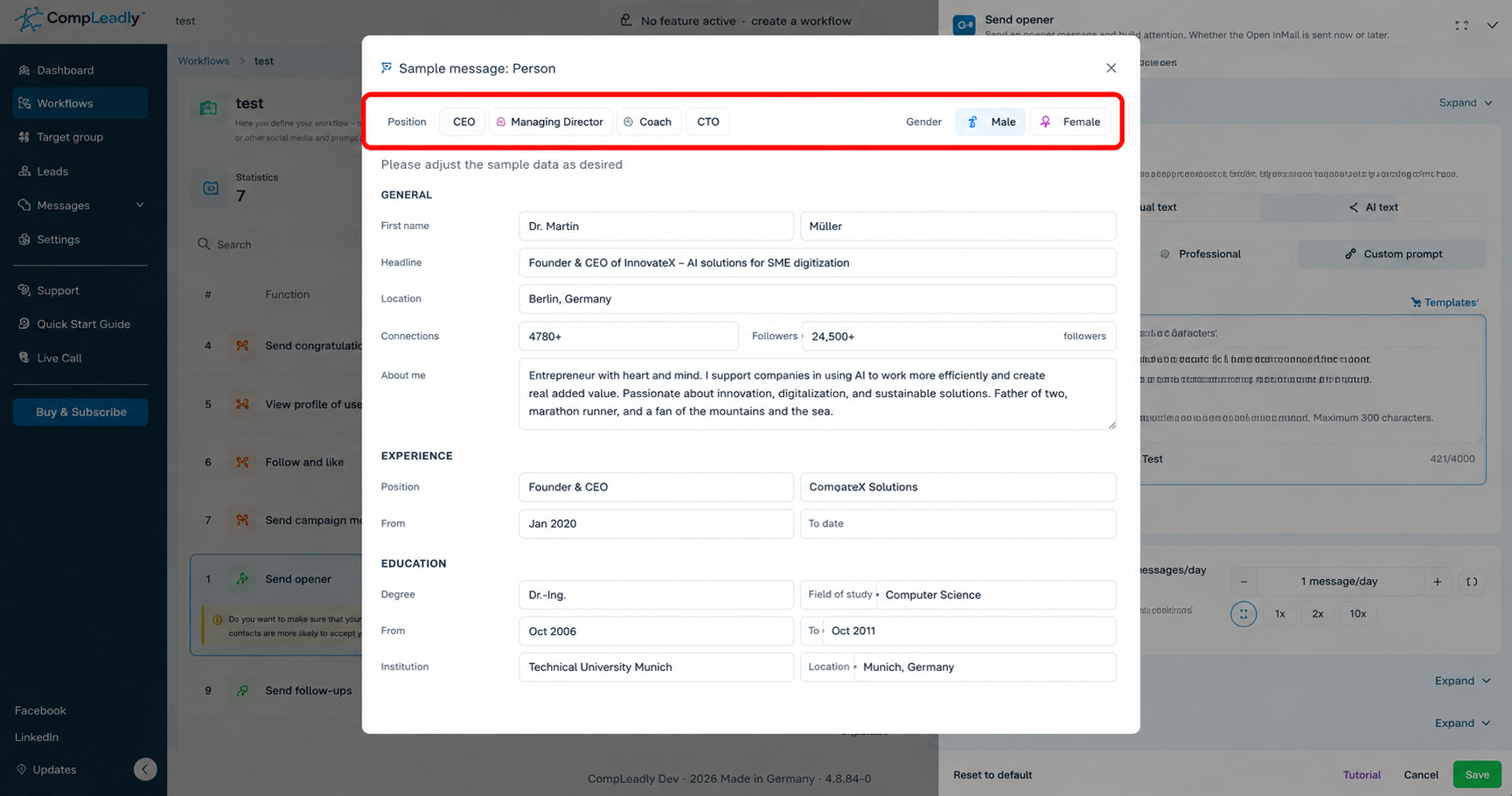
Via “Test”, “Test sample message” opens. Select a sample person (CEO, managing director, coach, CTO) and the gender at the top.
Step 5: Adjust sample data and generate message
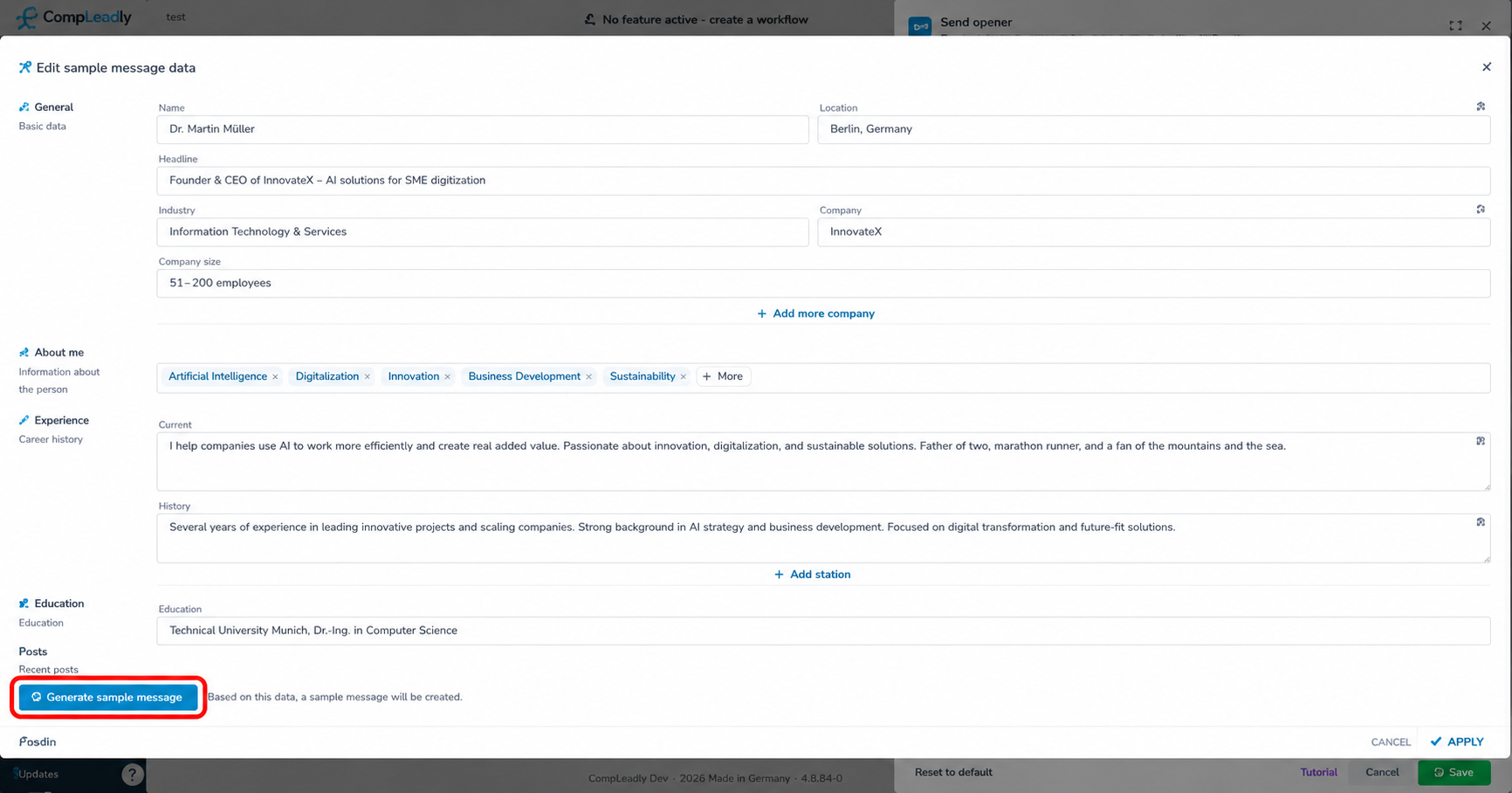
Freely adjust the sample data – name, headline, positions, skills, posts and education. Then click “Generate sample message”. The AI creates a preview message for you based on this data.
What the AI can refer to
In the prompt, you can access all of the contact’s profile data: name, headline, location, reach, contacts/followers, career history, skills, recent posts and education – or you let the AI phrase it freely. Instead of an AI prompt, you can also continue to send manual text with placeholders.
Tip – fallback message: With the switch “Send fallback message when the AI cannot generate a message” you control the emergency case, or if there is too little profile data available. By default, the contact is skipped and tried again during the next run.